
The Amazon Fire TV Stick: The Ultimate Cord-Cutting Device
The Amazon Fire TV Stick has established itself as the undisputed champion of the streaming hardware market. Powered by an affordable quad-core architecture, dedicated hardware video decoders, and an intuitive Alexa Voice Remote, Firestick transforms any standard HDMI television into an entertainment powerhouse.
When paired with a premier streaming provider like flixiptv, your Firestick unlocks access to over 35,000 live television channels, 142,000+ on-demand movies, and comprehensive 4K sports coverage. In this complete, beginner-friendly walkthrough, we demonstrate how to install and optimize an IPTV player on your Fire Stick in under five minutes.
Step 1: Prepare Your Firestick for Sideloading
Because advanced IPTV clients like TiviMate and IPTV Smarters Pro are customized for direct M3U/Xtream playlist playback, they are installed via the verified Downloader app:
- From your Fire TV home screen, click the Find > Search icon.
- Type Downloader and install the orange Downloader app by AFTVnews from the Amazon Appstore.
- Once installed, navigate to Firestick Settings > My Fire TV > Developer Options.
- Select Install Unknown Apps (or Apps from Unknown Sources) and toggle Downloader to ON.
Step 2: Download Your Preferred IPTV Player
Launch the Downloader application and enter one of the following shortcodes in the URL field:
- For IPTV Smarters Pro: Enter
iptvsmarters.com/smarters.apkor the numeric code provided by our WhatsApp support team. - For TiviMate IPTV Player: Enter
tivimate.comto download the official APK.
Click Go, wait for the file to download, and select Install. Once complete, click Open.
Step 3: Enter Your flixiptv Access Credentials
When you launch your player, choose Login with Xtream Codes API (this delivers the fastest and cleanest channel organization):
- Any Name: flixiptv
- Username: [Provided in your activation message]
- Password: [Provided in your activation message]
- Server URL: [Provided in your activation message, e.g.
http://live.flixiptv.best:8080]
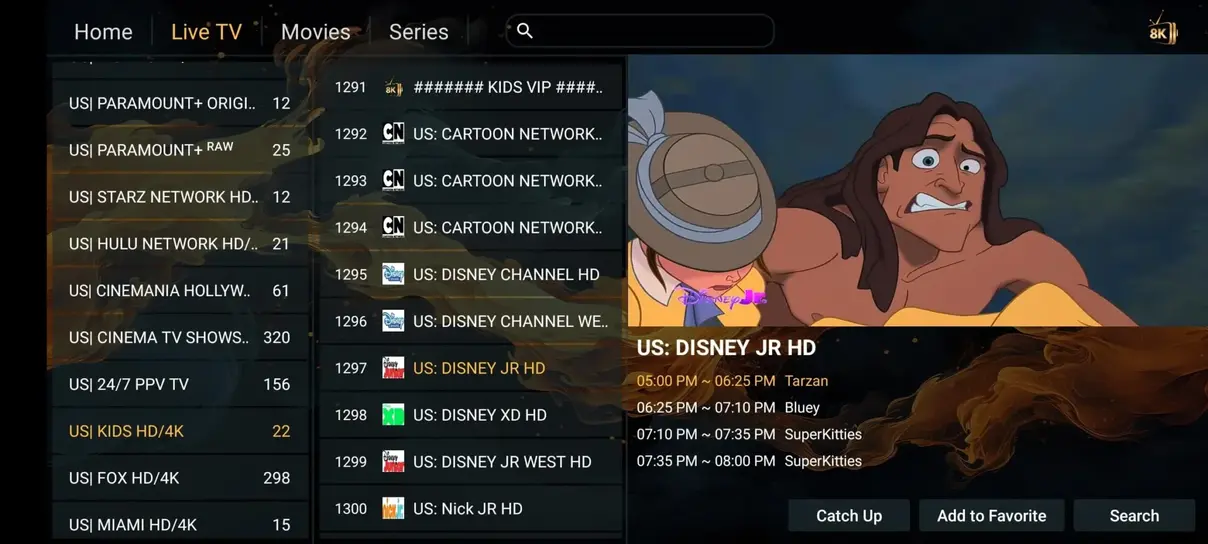
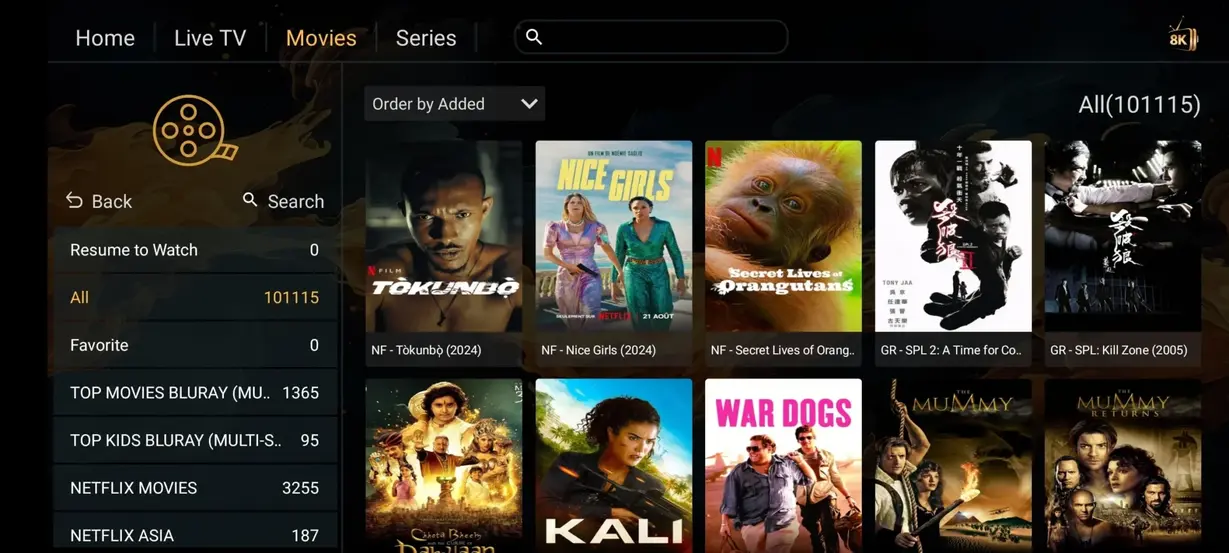
Click Add User. Within seconds, your complete manifest of 35,000+ live television channels, full Electronic Program Guide, and 142,000+ VOD titles will synchronize to your Fire Stick.
Pro-Tips for Buffer-Free Firestick Streaming
- Use 5GHz Wi-Fi: Keep your Firestick on the 5GHz frequency of your router to avoid packet collisions common on the crowded 2.4GHz band.
- Clear Cache Periodically: Go to Settings > Applications > Manage Installed Applications > Clear Cache to free up RAM.
- Select Hardware Plus (HW+) Decoding: Inside your player playback settings, set the video decoder to Hardware Plus to delegate video processing to the GPU.
Ready to stream? Check our affordable subscription packages and experience the ultimate TV setup on your Amazon Firestick. For additional device guides, visit our complete setup guide.
Ready to Upgrade Your TV Experience?
Get 35,000+ live television channels, 142,000+ VOD movies, and 4K sports with instant setup on your Smart TV.
Explore Plans & Get Started NowAdvanced Fire TV Tweaks: Increasing Cache Size & Audio Pacing
To squeeze maximum stability out of your Amazon Firestick, especially when watching 60fps live sports, implement these advanced performance tweaks inside your IPTV player:
Enabling Tunneling & Surface Rendering
Inside the playback preferences of TiviMate or IPTV Smarters on Fire OS, enable the option labeled Tunneling (or Tunnel Mode). Media tunneling synchronizes audio and video clocks directly at the hardware chip level, reducing audio latency to under 5 milliseconds and preventing lip-sync drift during multi-hour broadcasts.
Freeing Internal Storage for Smooth Video Buffering
Amazon Firesticks come with 8GB of internal storage, of which only ~4.5GB is available to the user. When storage falls below 1GB, Fire OS aggressively terminates background apps and constricts streaming cache memory. Ensure you uninstall unused Amazon games or streaming trials to keep at least 1.5GB of free space available for smooth IPTV video buffering.
Maintenance Checklist for Long-Term Firestick Streaming Performance
To keep your Fire TV Stick operating like brand new over months and years of heavy television viewing, follow this quick monthly maintenance checklist:
- Restart Firestick Monthly: Hold down the Select and Play/Pause buttons on your Alexa Voice Remote for 5 seconds until the device reboots.
- Check for Fire OS Updates: Go to Settings > My Fire TV > About > Check for Updates to ensure you have the latest system security patches.
- Limit Background App Auto-Launch: Turn off 'Auto-Play Sound & Video' under Firestick Preferences > Featured Content to preserve memory for your IPTV player.
Following these simple habits guarantees your flixiptv channels will continue loading in milliseconds without stutter or freeze.
Using Firestick Parental Controls with flixiptv
For families sharing an Amazon Fire Stick in the main living room, keeping adult or mature programming restricted is simple. You can configure a 4-digit PIN directly inside your player application (such as IPTV Smarters Pro or TiviMate) under Settings > Parental Controls.
Once enabled, any selected category folders (such as adult channels or mature movies) will require the PIN to unlock, ensuring children can safely browse kids programming and cartoons without accidental access to restricted content.
Frequently Asked Questions About Firestick IPTV Setup
Is Downloader safe to use? Yes. Downloader is an official app created by AFTVnews and vetted by Amazon. It acts simply as a web browser and file download utility.
Will updating my Firestick delete my IPTV app? No. System updates to Fire OS preserve your installed apps, account credentials, and customized channel favorites.
Managing Firestick Cache and Temporary Video Files
Streaming continuous 4K video generates temporary cache files in your player's application memory. To maintain peak performance, navigate to Settings > Applications > Manage Installed Applications once a month, select your IPTV player, and choose Clear Cache. This frees up hundreds of megabytes of flash memory, ensuring rapid channel zapping and zero buffer pauses.
Maximizing Alexa Voice Remote Navigation on Fire TV
Your Alexa Voice Remote can streamline launching your IPTV setup. You can use voice commands like "Alexa, open IPTV Smarters" or "Alexa, open HOT Player" to launch your television player directly without scrolling through home screen app carousels, making daily viewing effortless for family members of all ages.